As well as the output agents you can use open prompting, both within the Workspace, where the prompt will reference the knowledge base for the workspace, or within the Chat area, where you can select one of more files to chat against.
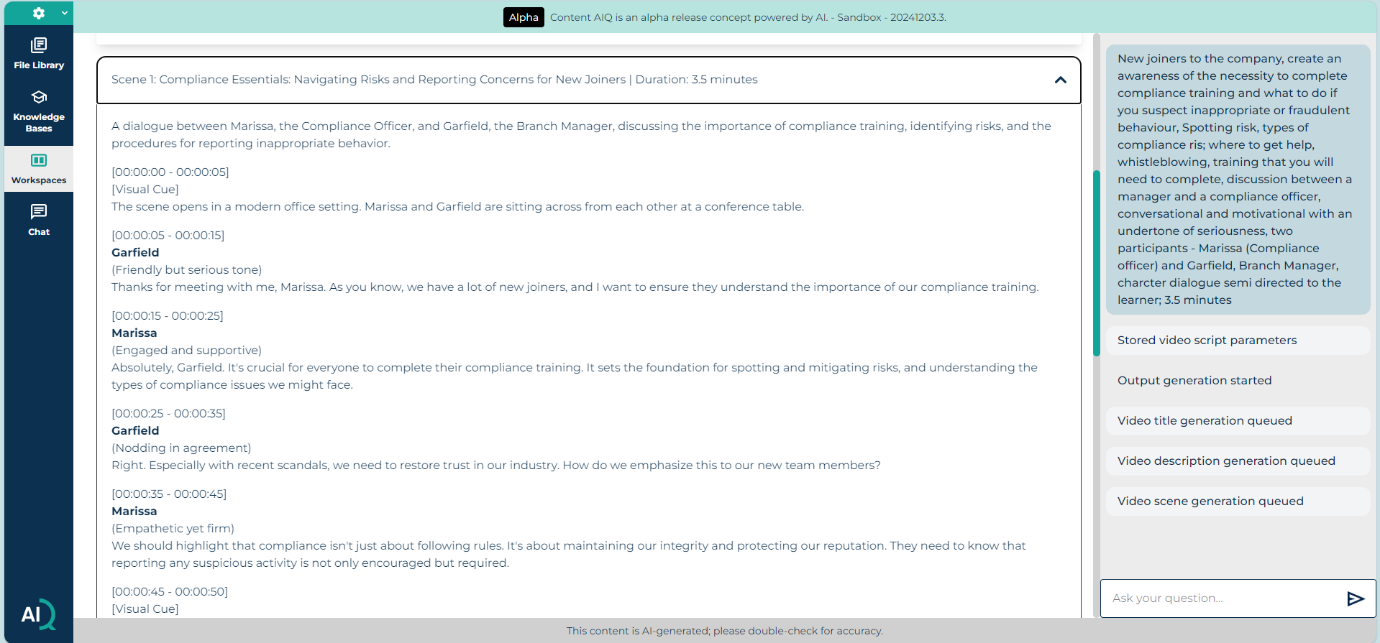
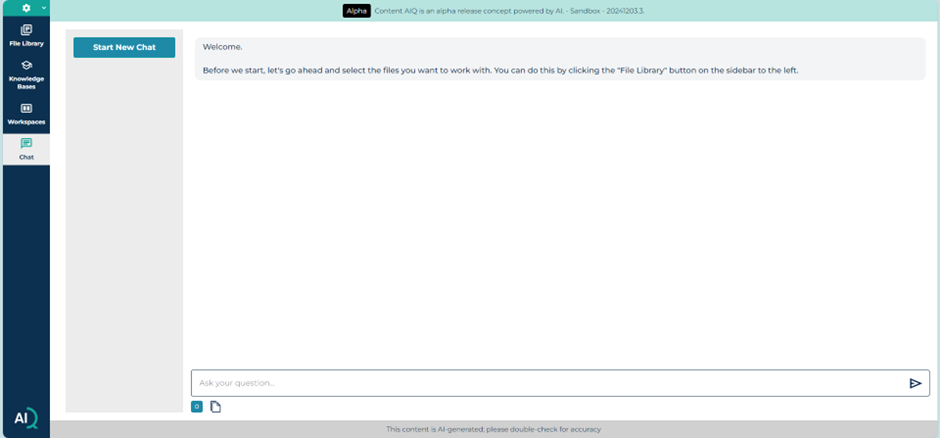
You can start a new chat at any time or return to a previous chat. You can also copy a chat in full by selecting the copy icon below the text entry box and paste it into an external file such as a Word document.
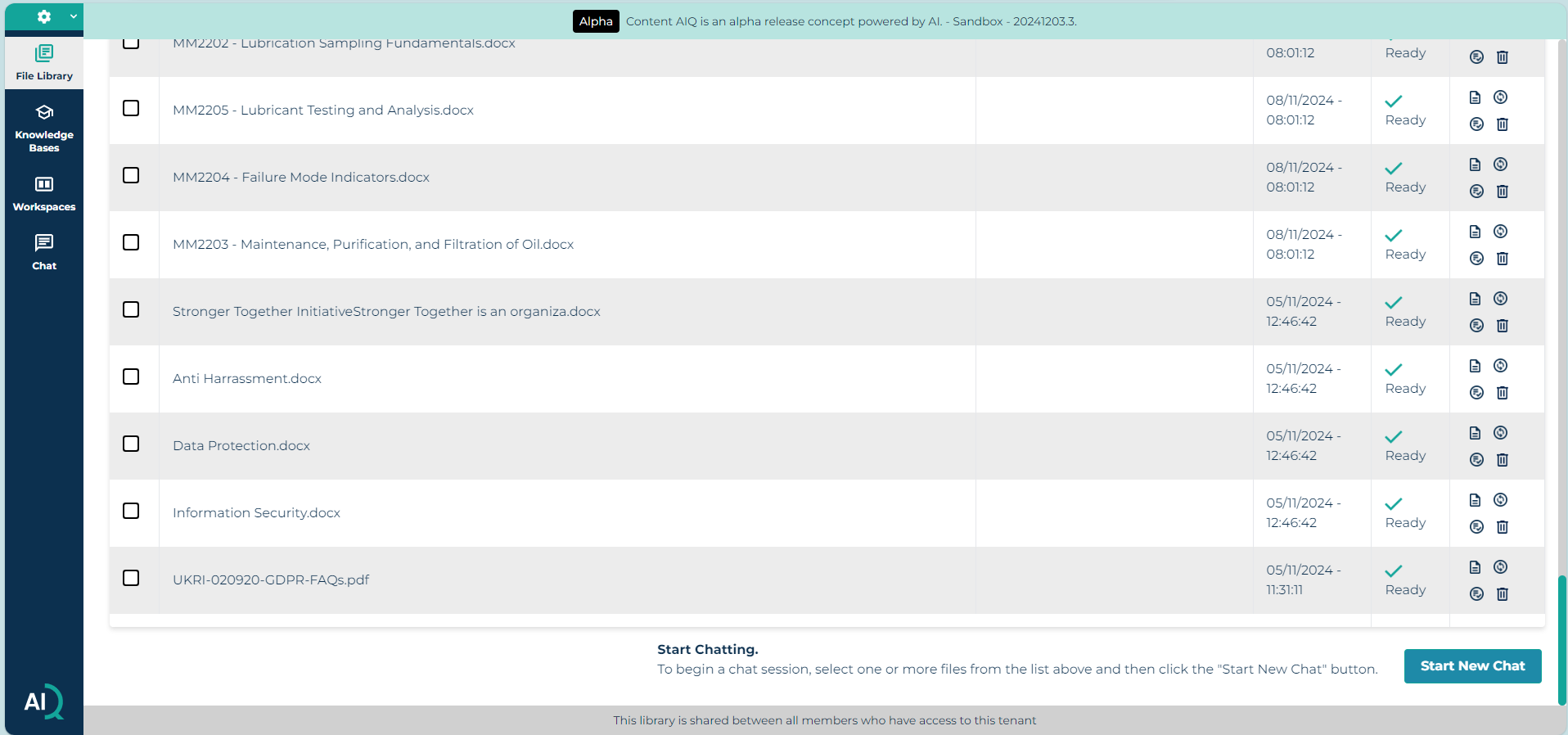
To start chatting with the AI, choose your file or files from the file library and scroll down to confirm the files you want to use.
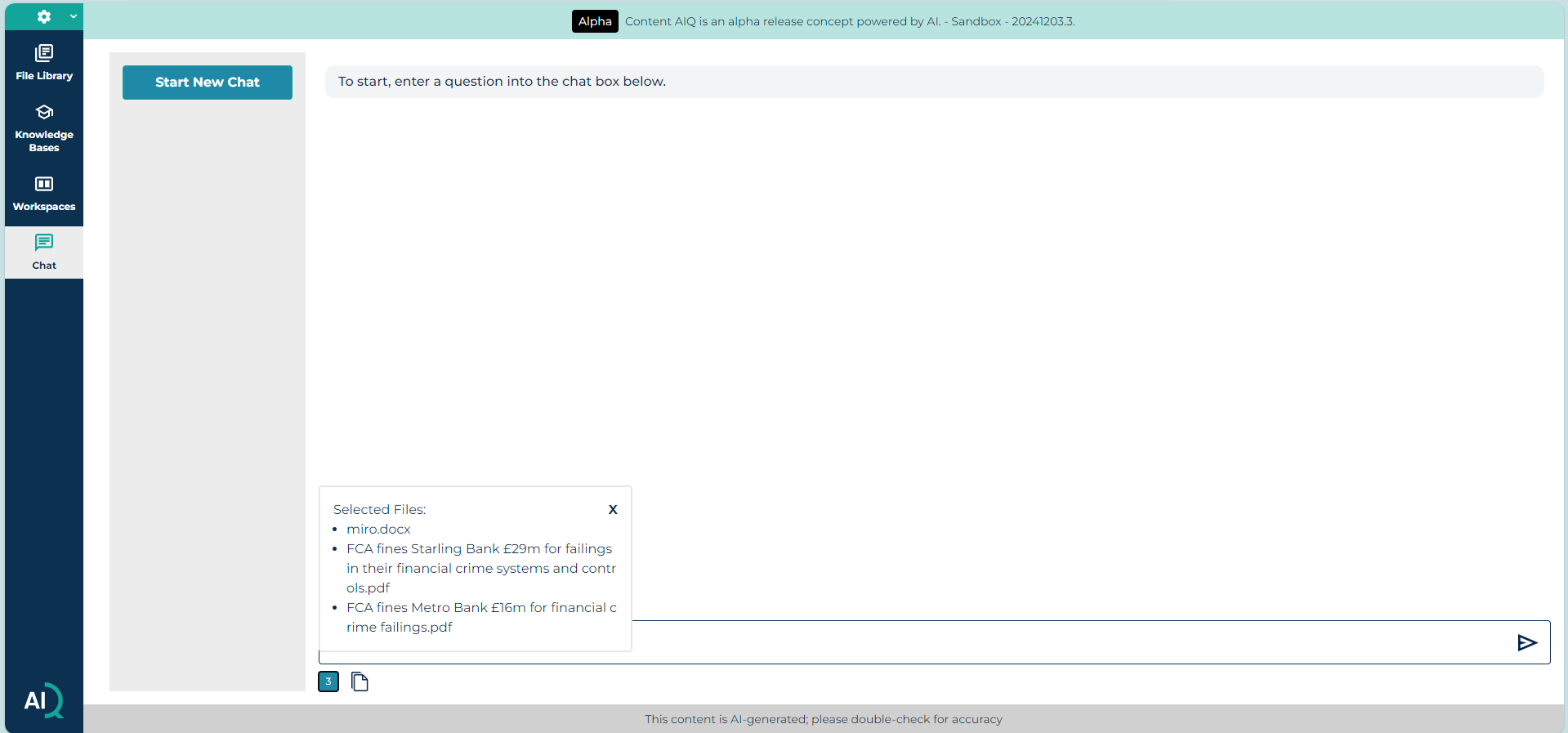
You can check the files you are working with, once selected, by selecting the small box with a number in it at the bottom of the chat screen.
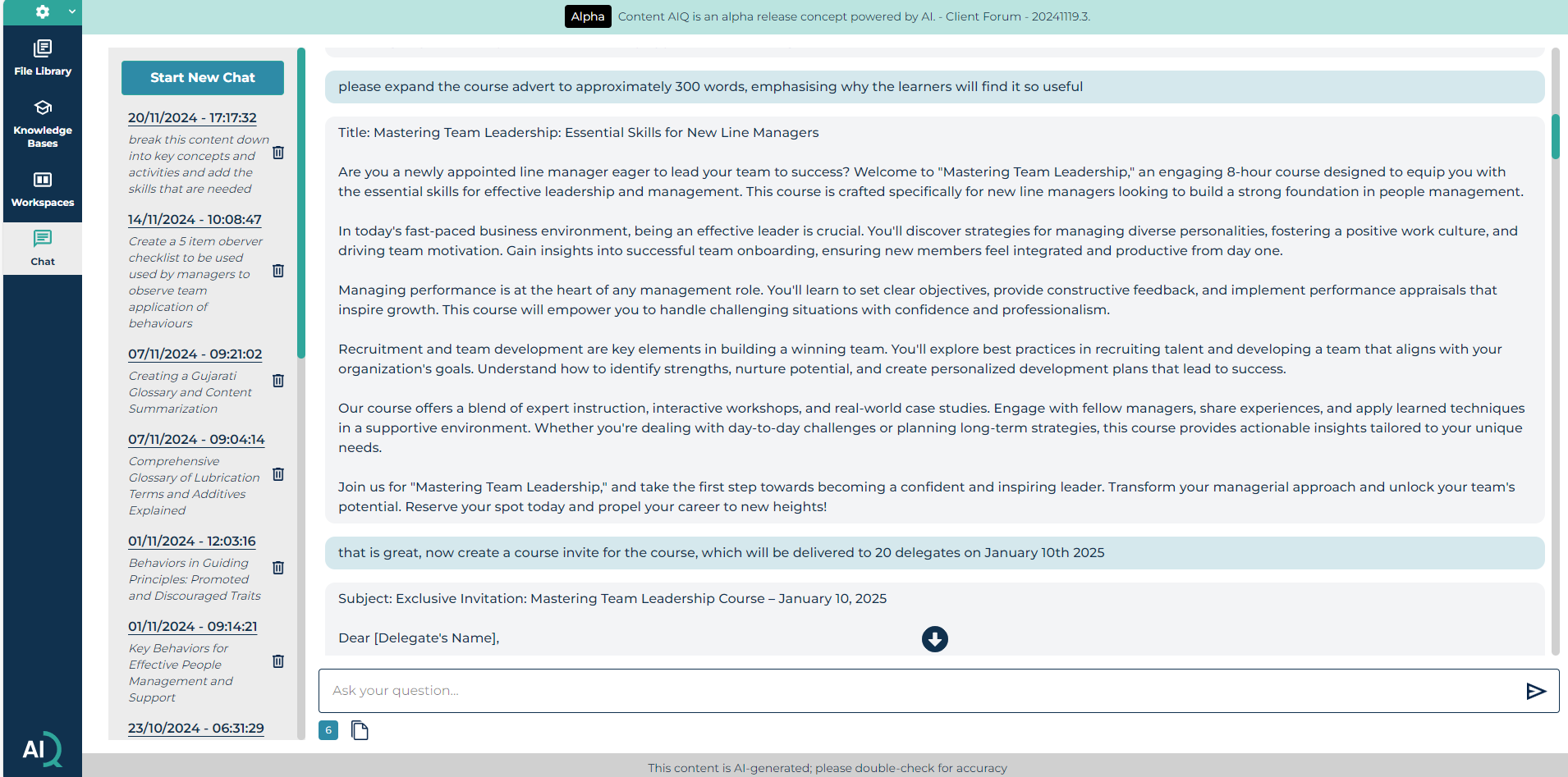
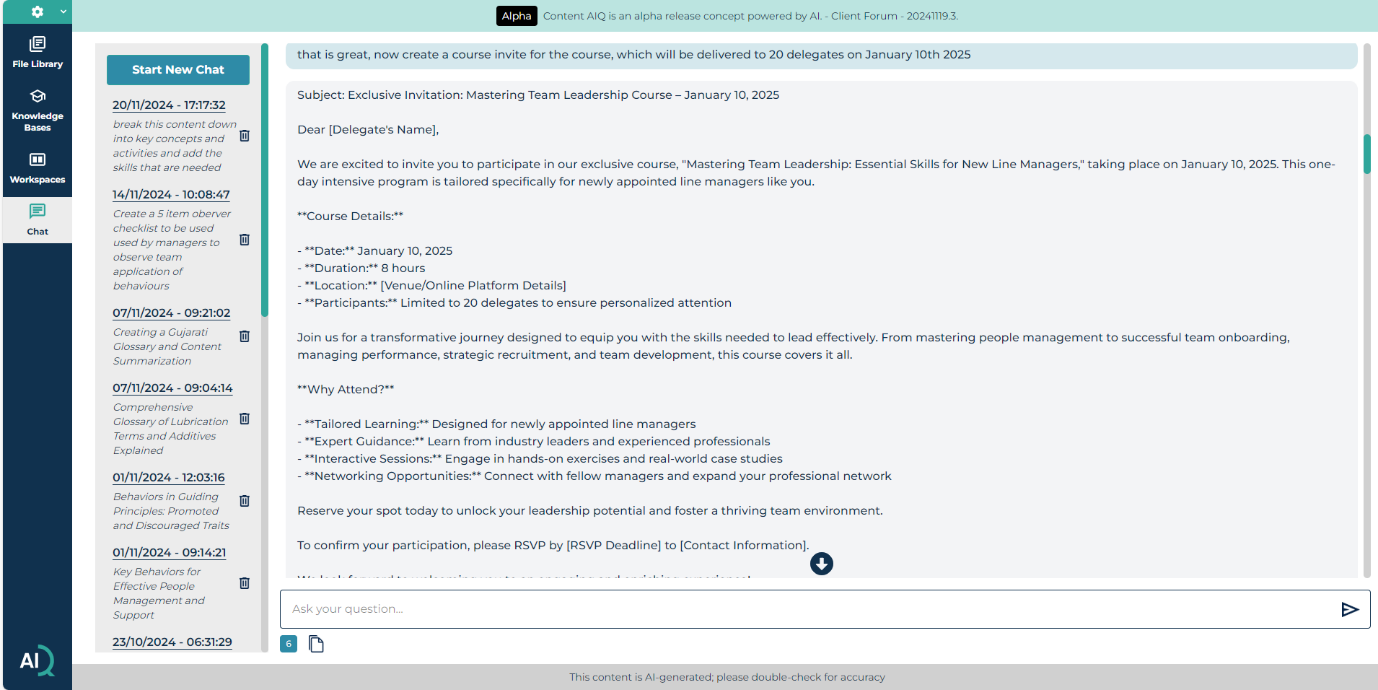
You can use the dialogue box in the chat area to interrogate the content or generate many different types of outputs using open / chained prompting.
We’ve included a quick – get started with prompting guide at the end of this section.
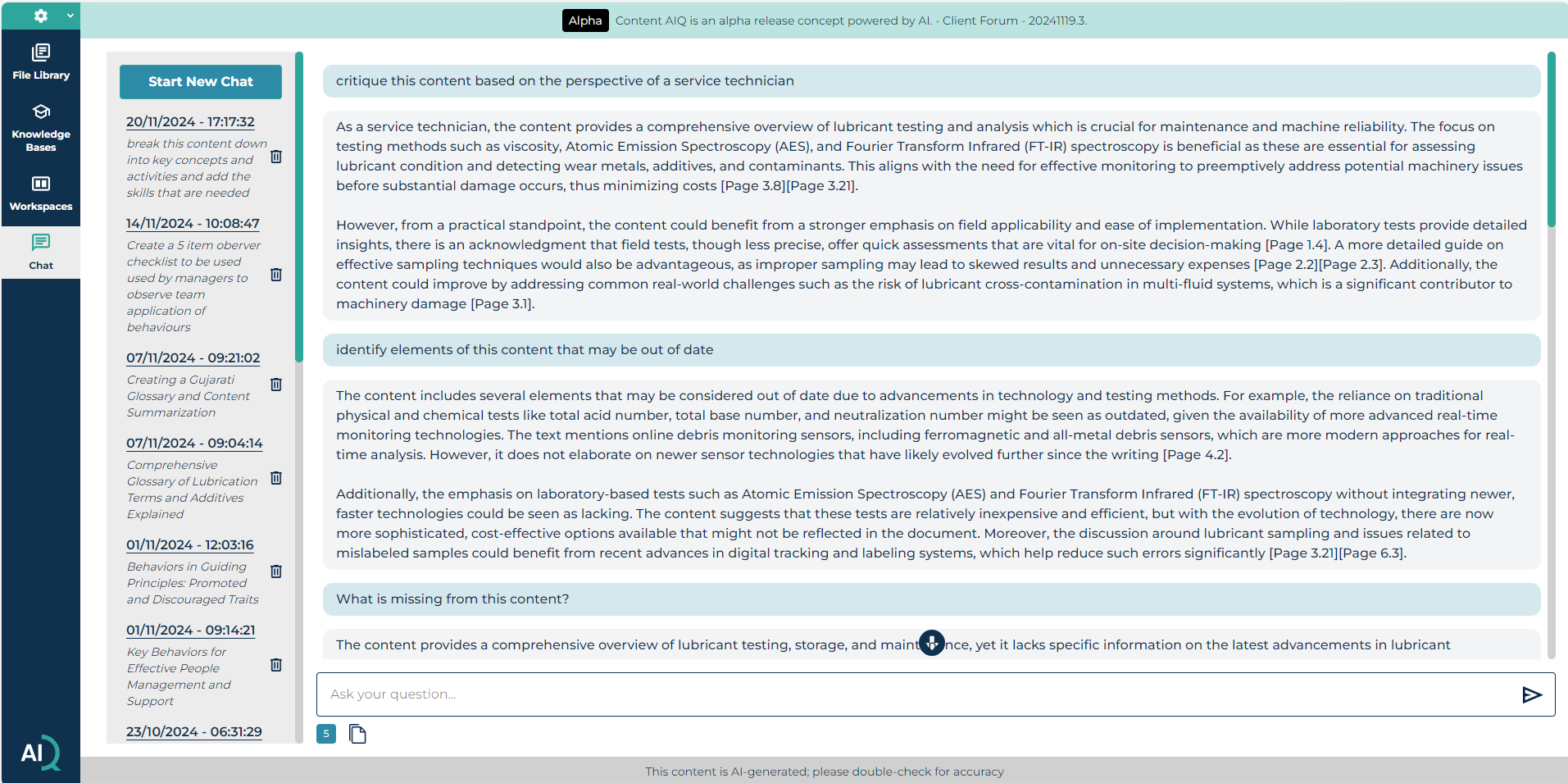
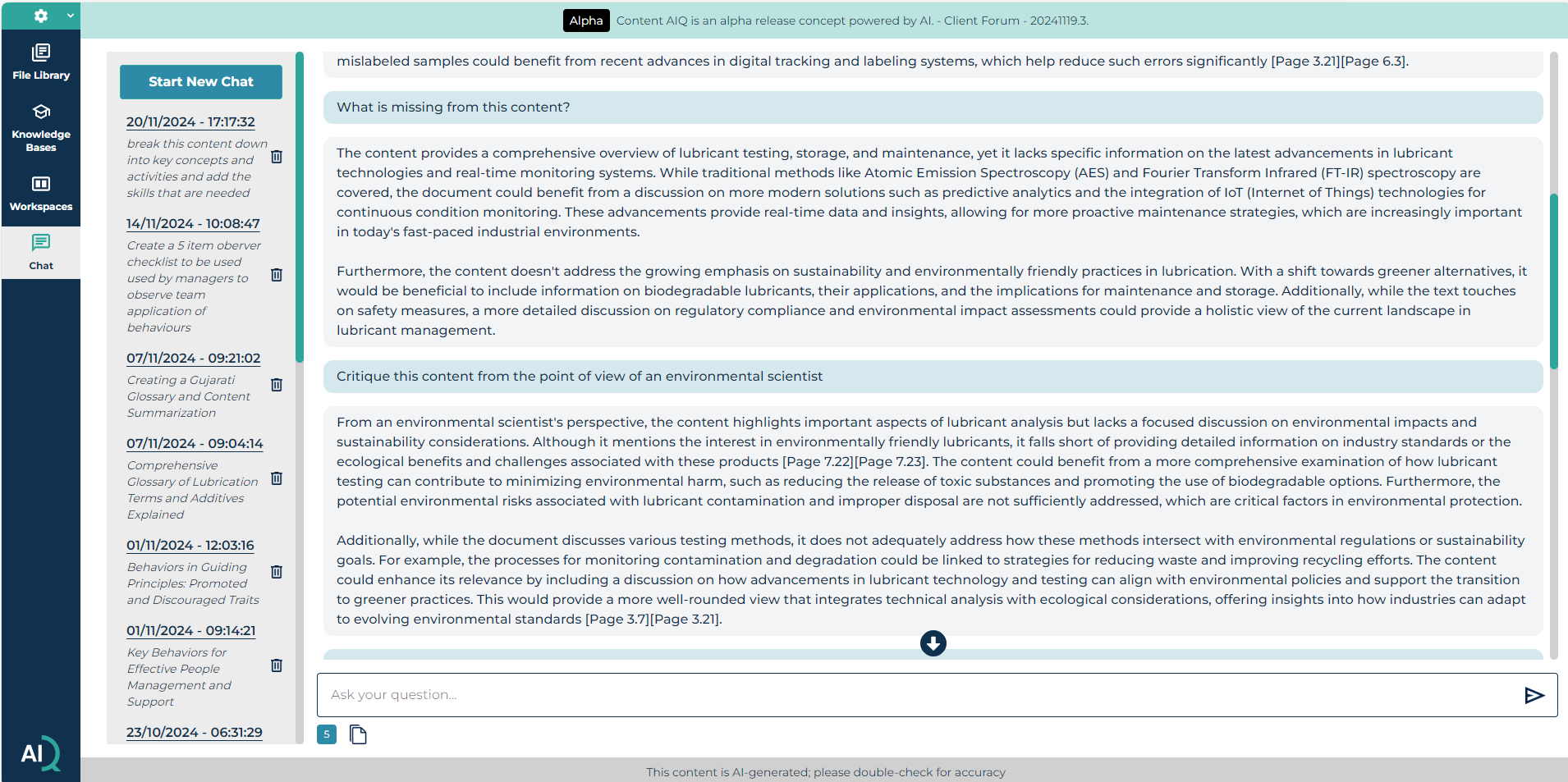
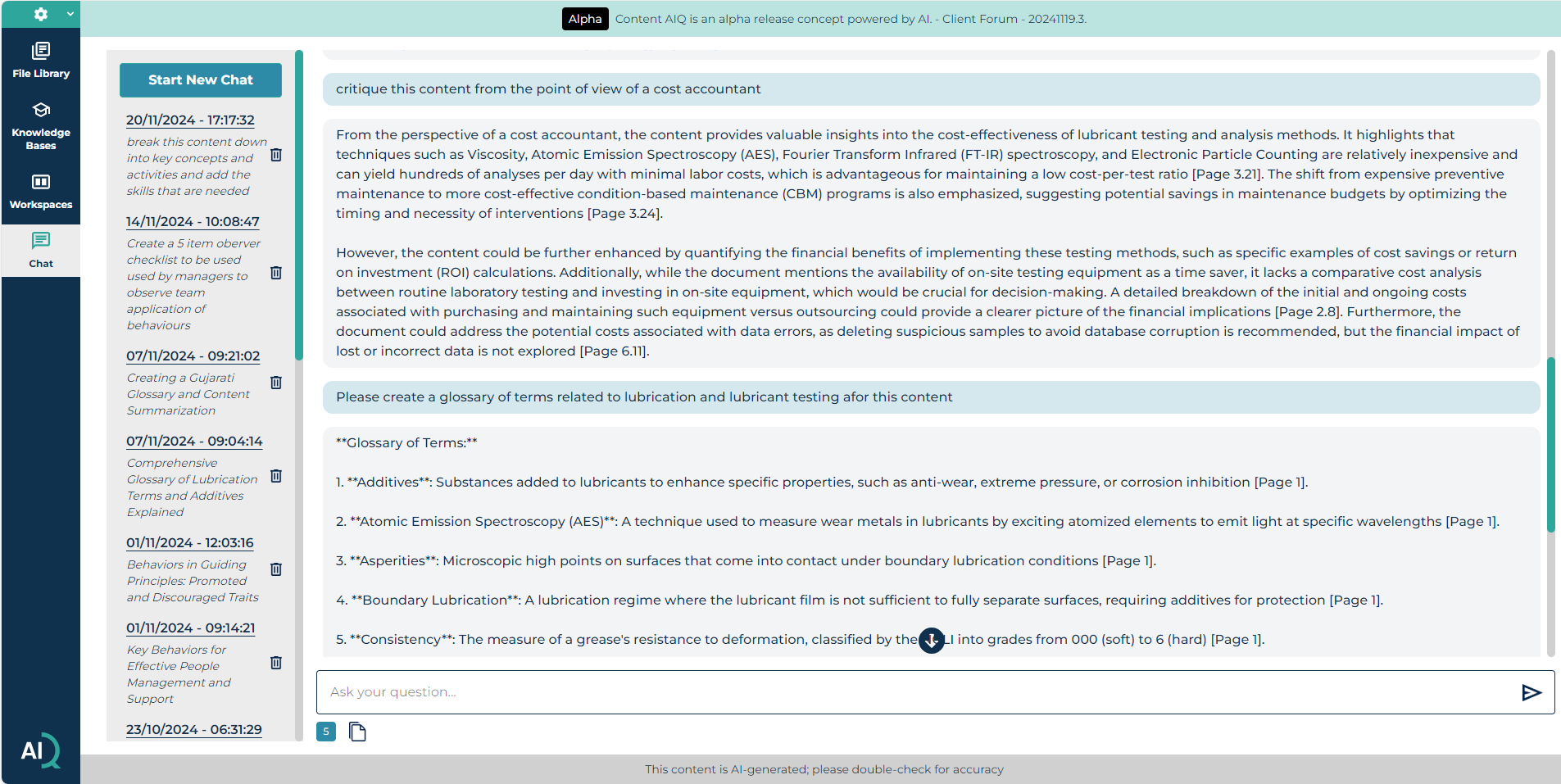
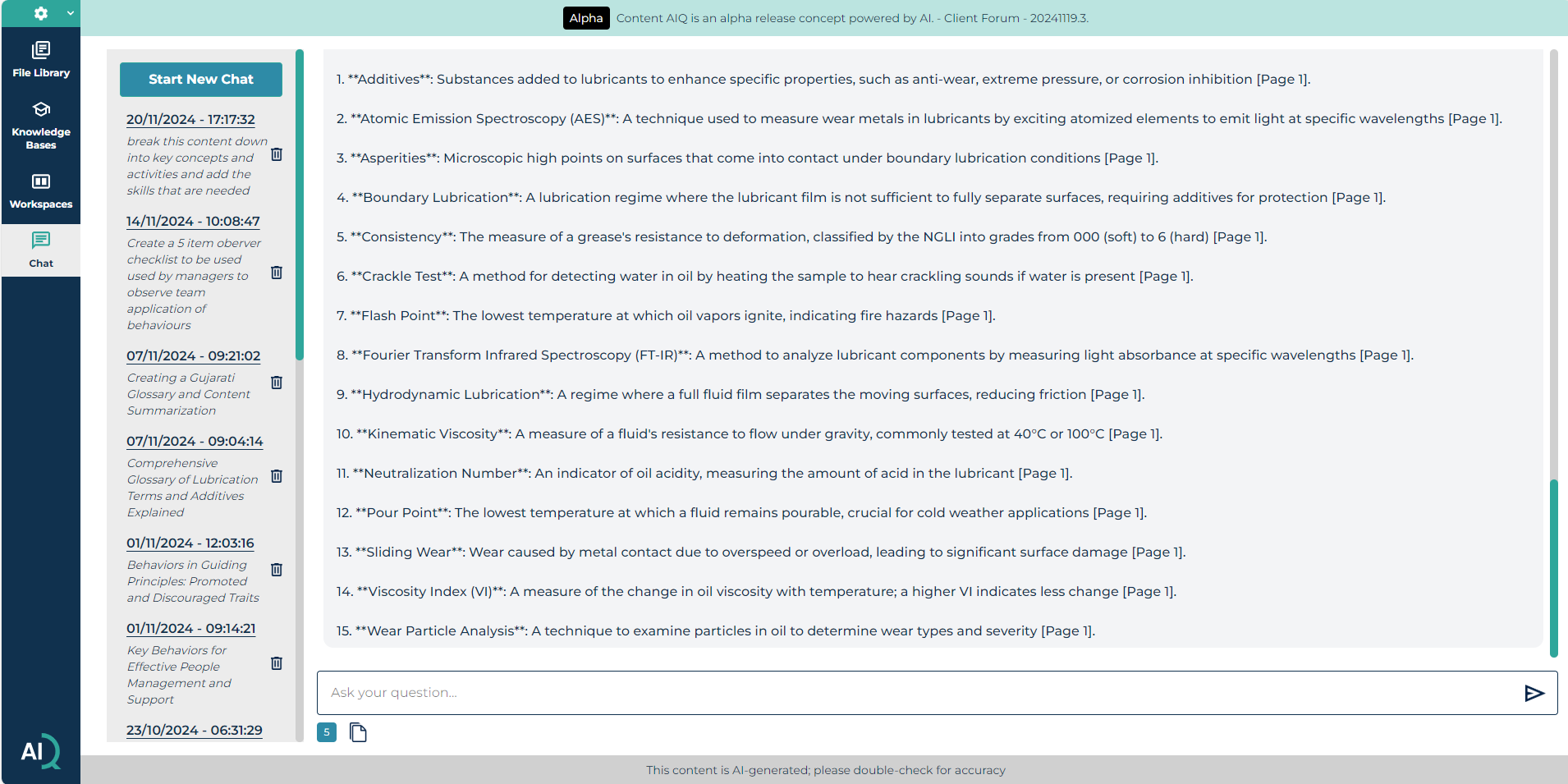
Examples of prompts that we have used are shown in the next few images, but really you are only limited by your own imagination and the content that you are working with!
Was this article helpful?
That’s Great!
Thank you for your feedback
Sorry! We couldn't be helpful
Thank you for your feedback
Feedback sent
We appreciate your effort and will try to fix the article