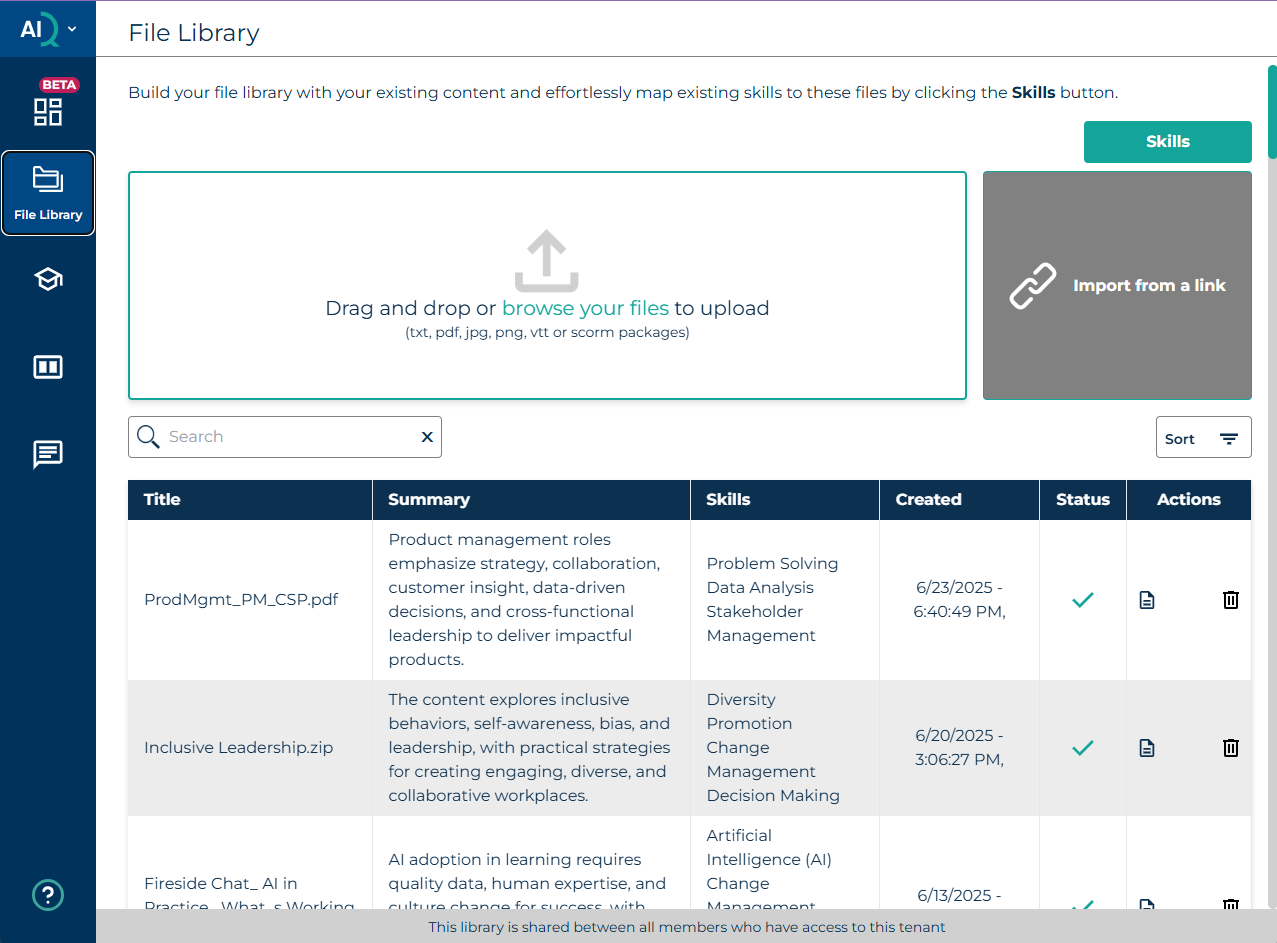
When you first access Content AIQ, you may have a pre-populated set of content to work with (if you have licensed a GP content library) or you may not have content uploaded. To work with source materials, you need to first populate the File Library with the content you need to analyse. The File Library is used to upload your content which will form the basis of your knowledge bases and outputs.
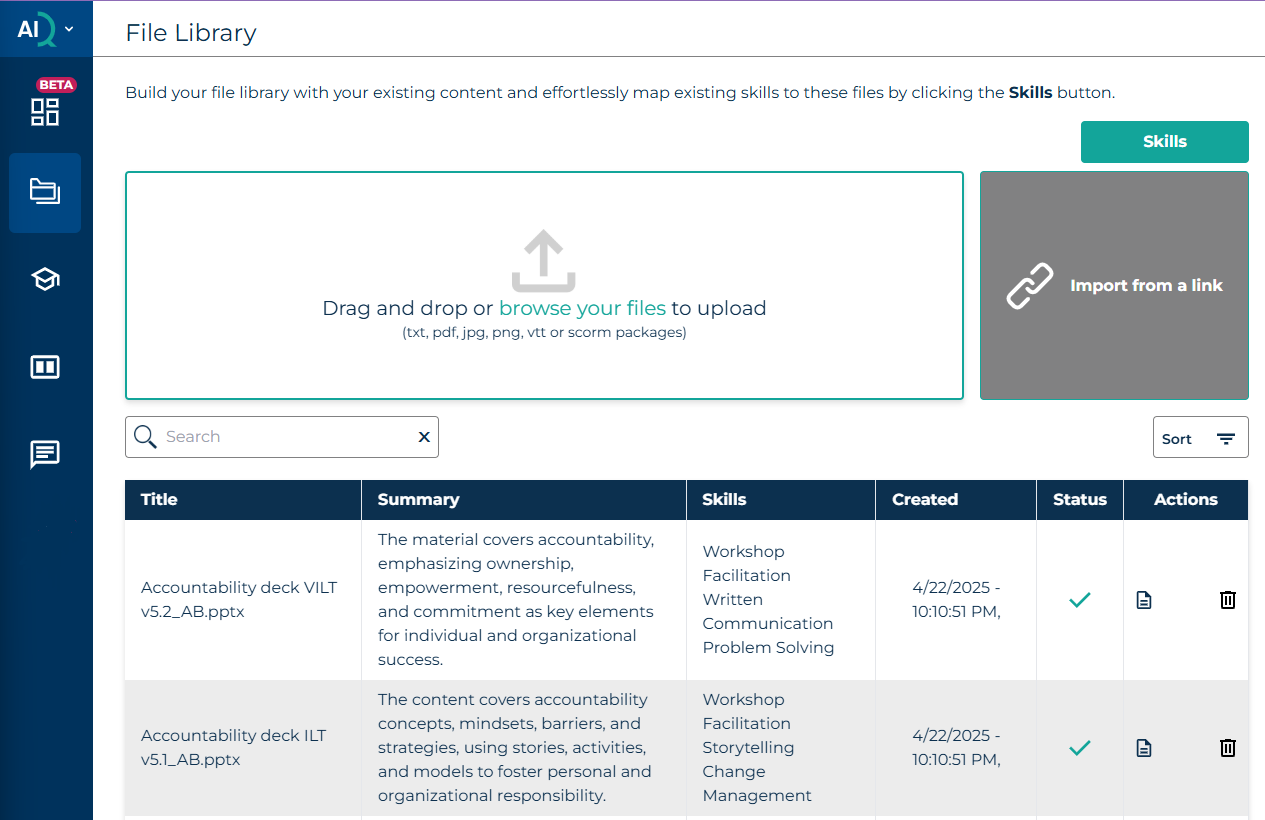
(The above image shows the file library with content already uploaded)
Uploading files (Short video tutorial)
Uploading files
You can upload the following file types:
- Word files (.docx)
- PowerPoint files (.pptx)
- Excel (.xlsx)
- Text Files
- .csv Files
- .mp3 Files
- .mp4 Files
- .vtt files
- SCORM files (Storyline, Rise, Captivate, and gomo)
- PDF Files (note, this is a very useful format to use as certain tools – such as Microsoft Project are not yet in the upload list, but if you can export content as a PDF, Content AIQ will read and interpret the output)
- There is a 1GB limit on file sizes, which can limit importing large videos for example, but a video transcript will usually contain the same information and be a much smaller and convenient format to import
- You can upload courses as a zipped folder, containing multiple files/assets
If you have additional file types that you want to import, or if you have files larger than 1GB, please raise a ticket here (https://support.contentaiq.com/support/tickets/new) so that we can assist.
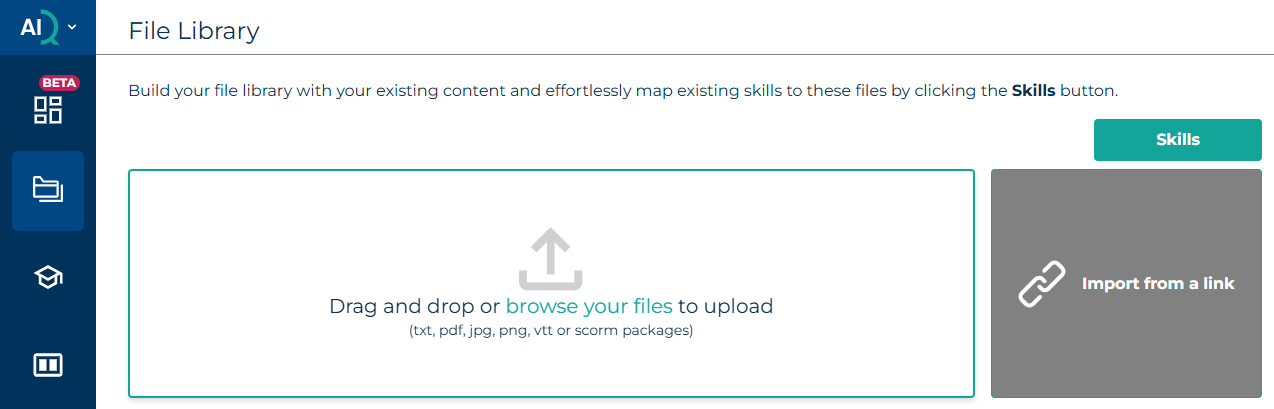
To upload files to your Library, you can either drag and drop your files into the upload area or select ‘browse your files’ to select files from your file manager.
Once you have added your file, select ‘Upload’ to finish the process, or alternatively if you have selected the incorrect file, you can select ‘Clear’ to start again.
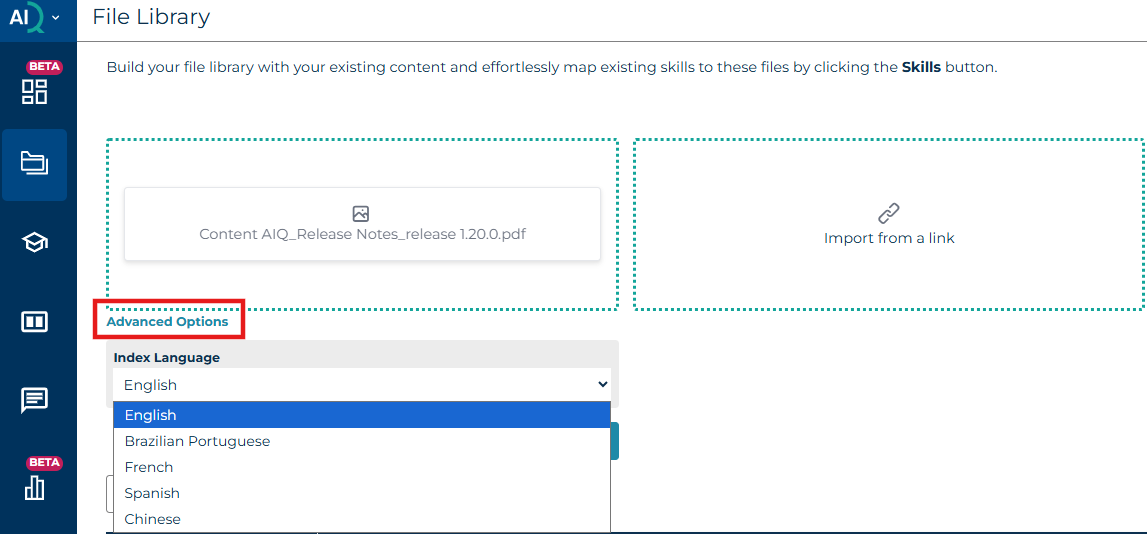
Language definition
You are now able to define the language during file upload (if the file is not in English). After you have selected your file to upload, you will see 'Advanced Options' appear. Select this button to reveal the Index Language dropdown you can select from.
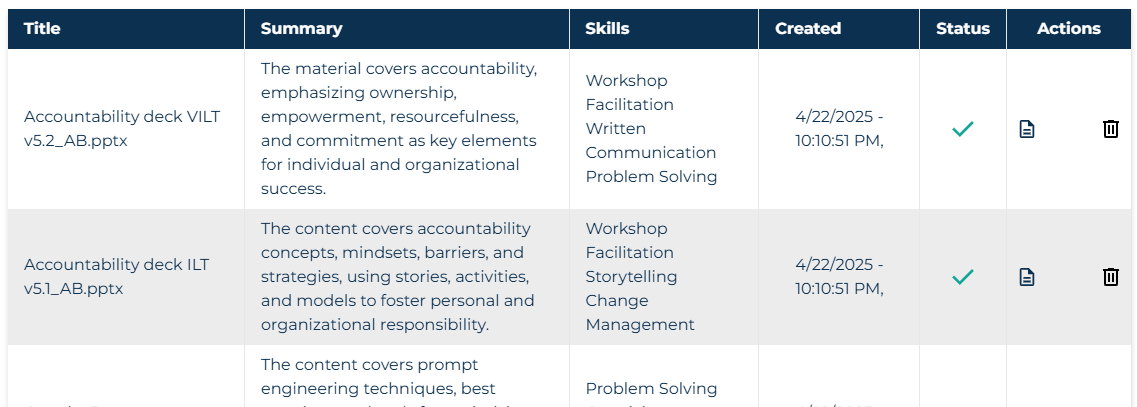
Once the status shows as ready, your file will have been imported and is ready to use. If you upload multiple files at the same time, they will be queued for processing and will be marked as ready once fully imported.
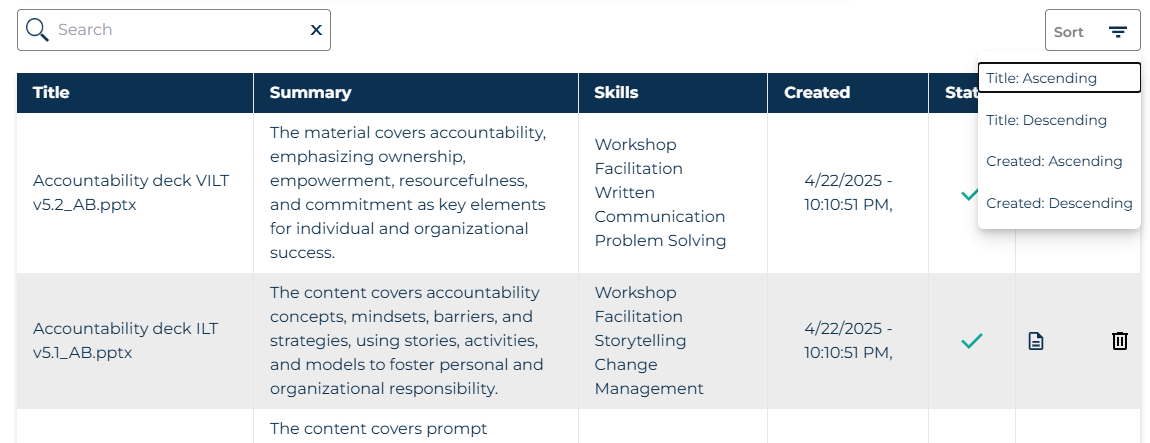
You can search for files by name by entering all or part of the title in the Search field, and you can also sort the files using the Sort drop-down menu.
Renaming file
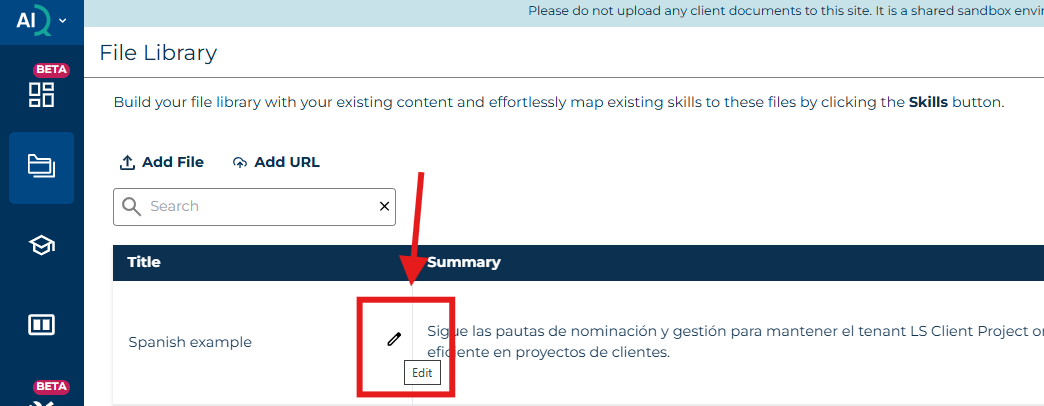
You are now able to rename a file once it has been uploaded. Simply hover over the Title text of your file and select the Edit button. Press enter to confirm the new name of your file.
Viewing files
Select a file to view the metadata and details.
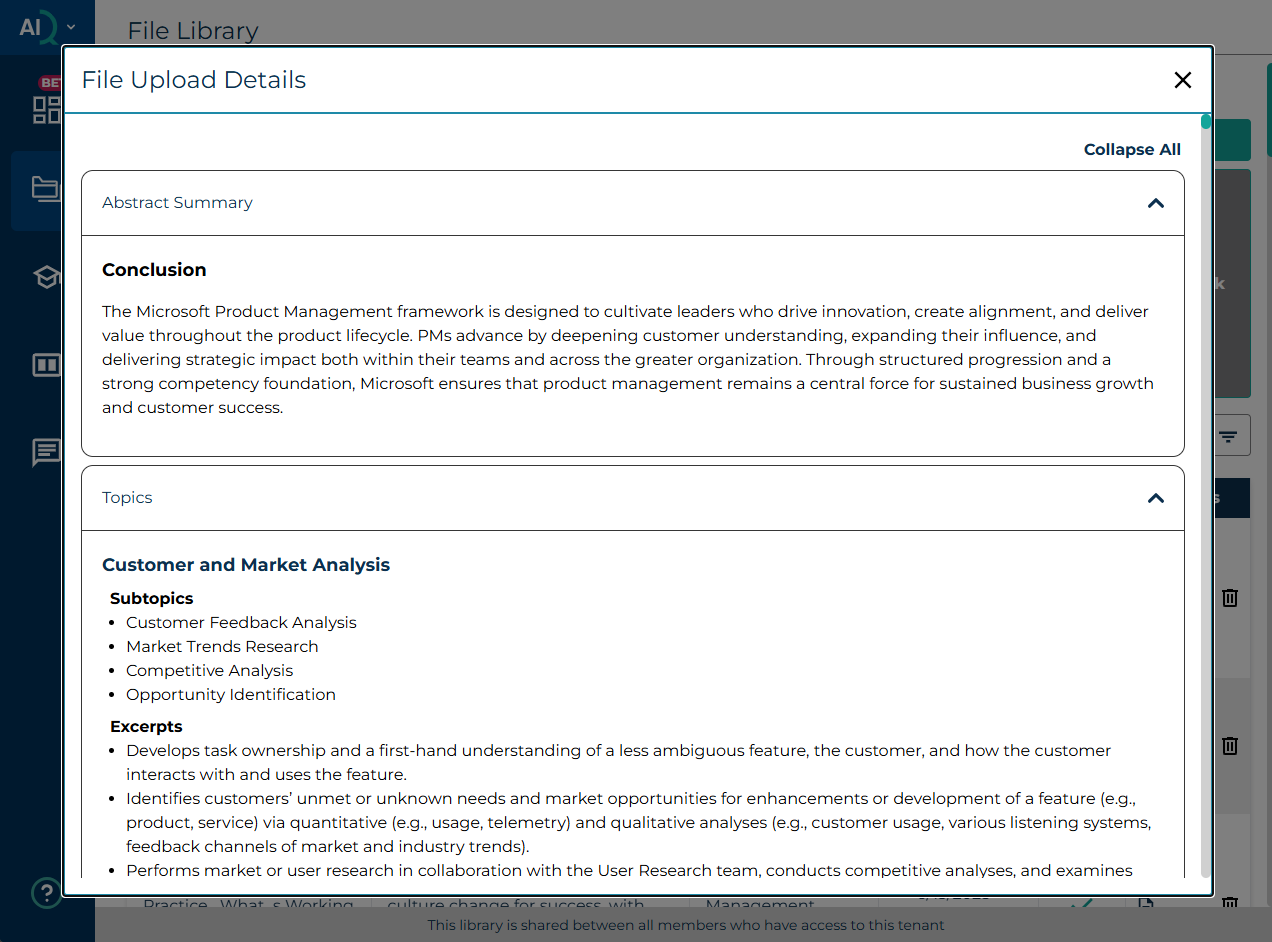
The file details can be viewed by selecting the File Details icon from the Actions column. This is useful to check that your input sources have been imported and the information extracted as expected. For example, if you upload an unusual file type, not everything may have been extracted.
Was this article helpful?
That’s Great!
Thank you for your feedback
Sorry! We couldn't be helpful
Thank you for your feedback
Feedback sent
We appreciate your effort and will try to fix the article