Once you have requested a particular output, it will appear in the Workspace. Select the output to start to create your content.
You will be presented with a list of questions relevant to the type of output you have selected. In this case an assessment.
A blank Assessment screen will appear with a set of parameters that will allow the AI to generate your assessment.
For this output you will need to specify the target audience / audience level, the learning goals or objectives the assessment should cover, and the number and type of questions.
Once you have provided all the necessary information, your content will be generated. You can continue to work on the content using the Chat feature, until you have the result you need.
Enter your query in the dialogue box and select the submit arrow (bottom left of the screen).
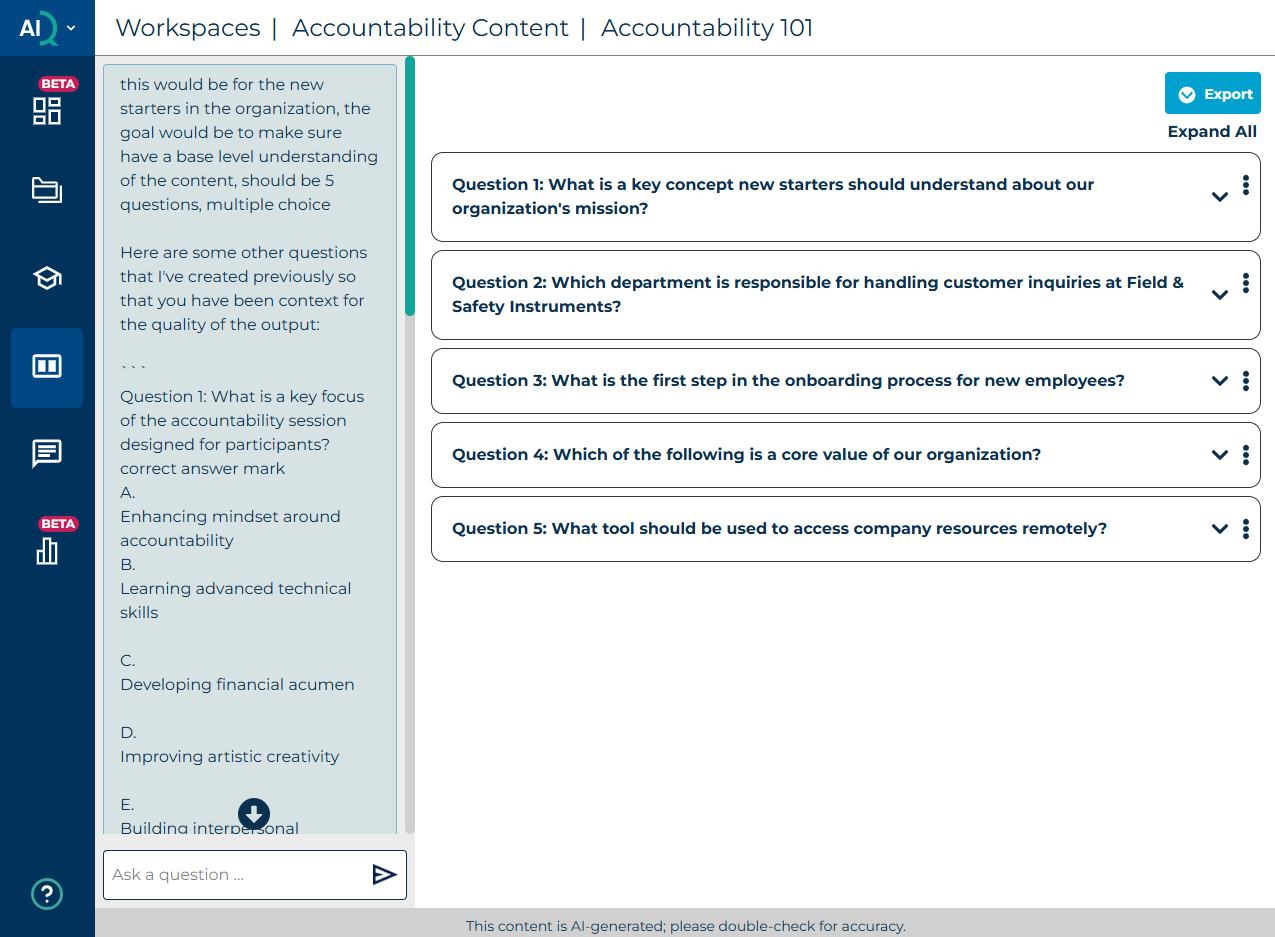
The AI will start to process your request:
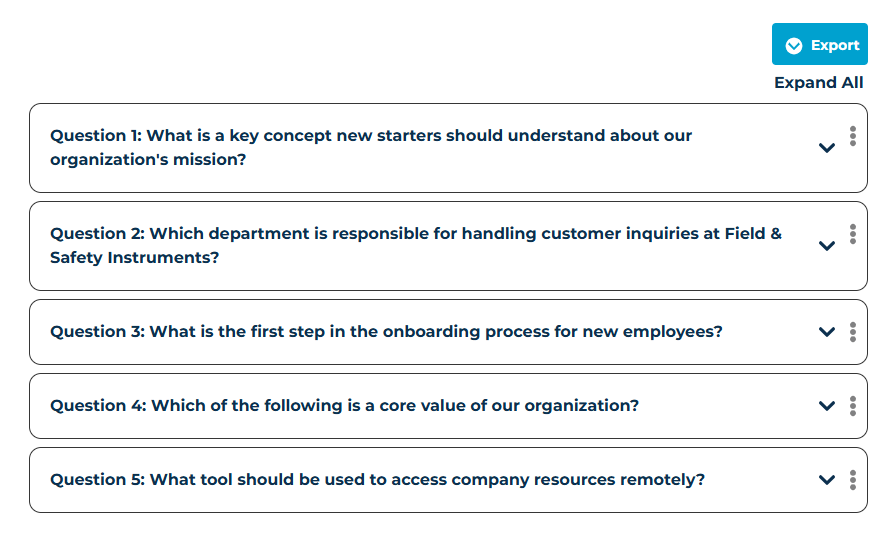
Once the assessment is ready, it will appear as a condensed set of questions, expand all to see the outputs.
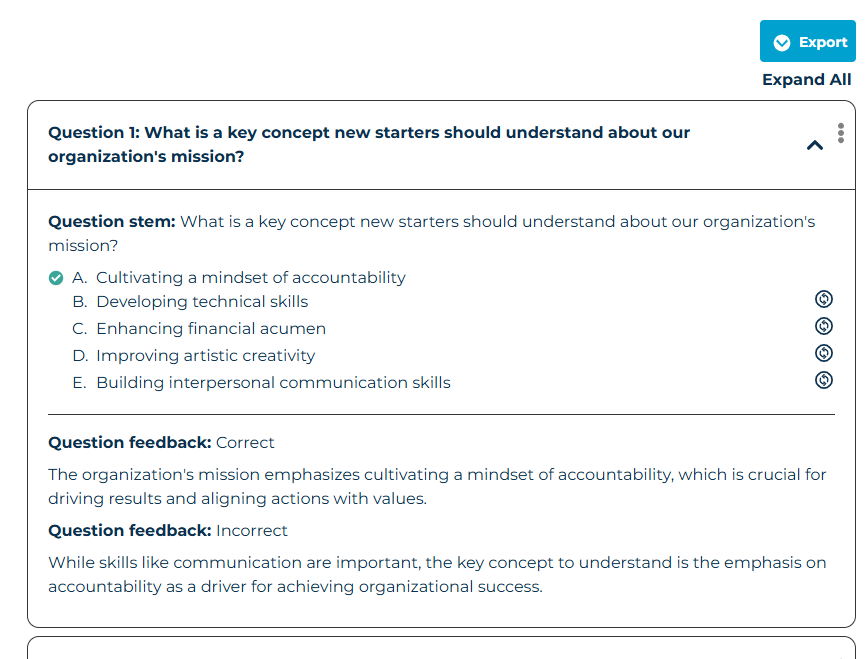
The correct answer will be indicated, and the distractors can be regenerated by pressing the button next to them.
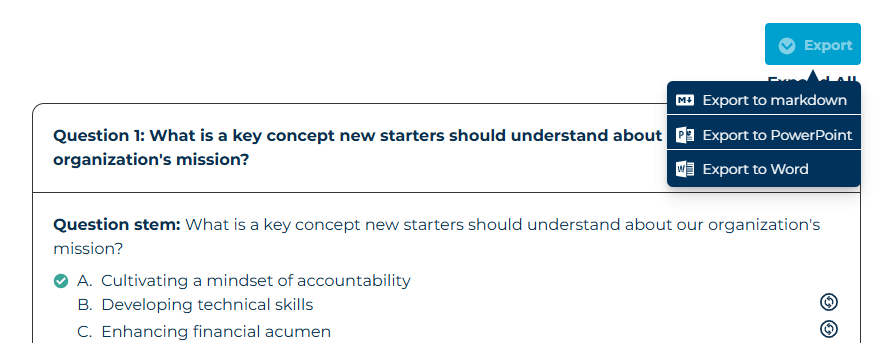
You can copy the Assessment outputs to your chosen output format, e.g. an office document or into an authoring or quiz tool. You can also export directly in markdown, PowerPoint, or Word formats.
Was this article helpful?
That’s Great!
Thank you for your feedback
Sorry! We couldn't be helpful
Thank you for your feedback
Feedback sent
We appreciate your effort and will try to fix the article